

Prepare to Ship iPhone 18 Pro Max: What You Need to Know
The all-new iPhone 18 hosts the largest battery capacity created by Apple yet, which ranges up to a huge 5,567mAh. This allows over 20 watt-hours, a huge leap from last year’s 17 Pro Max.
However, with this exciting innovation comes one problem. Most countries have shipping requirements for devices over 20Wh. In both the United States and United Kingdom, batteries of this size are considered ‘dangerous goods’, meaning they’re forbidden from being sent through standard consumer mail services such as USPS standard post and Royal Mail.
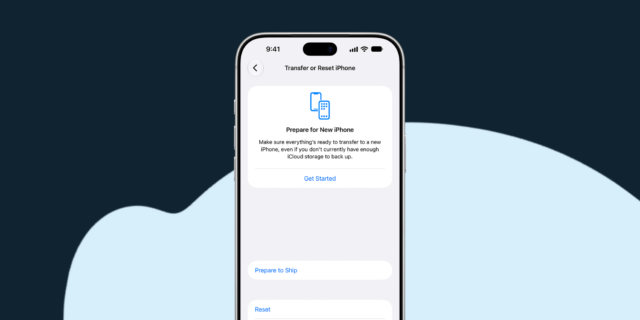
Apple has created a simple solution for this, creating ‘Prepare to Ship’ mode. This means the devices battery firmware limits the capacity to under 20Wh. This mode is activated from the point of manufacture and automatically disabled when you first get your device up and running, meaning the devices full potential is unlocked from the get-go. So, if you need to ship this device in instances such as resell, recycle or repair, there’s one more step you must follow to safely transport the device.
How to prepare your iPhone 18 Pro Max for shipping
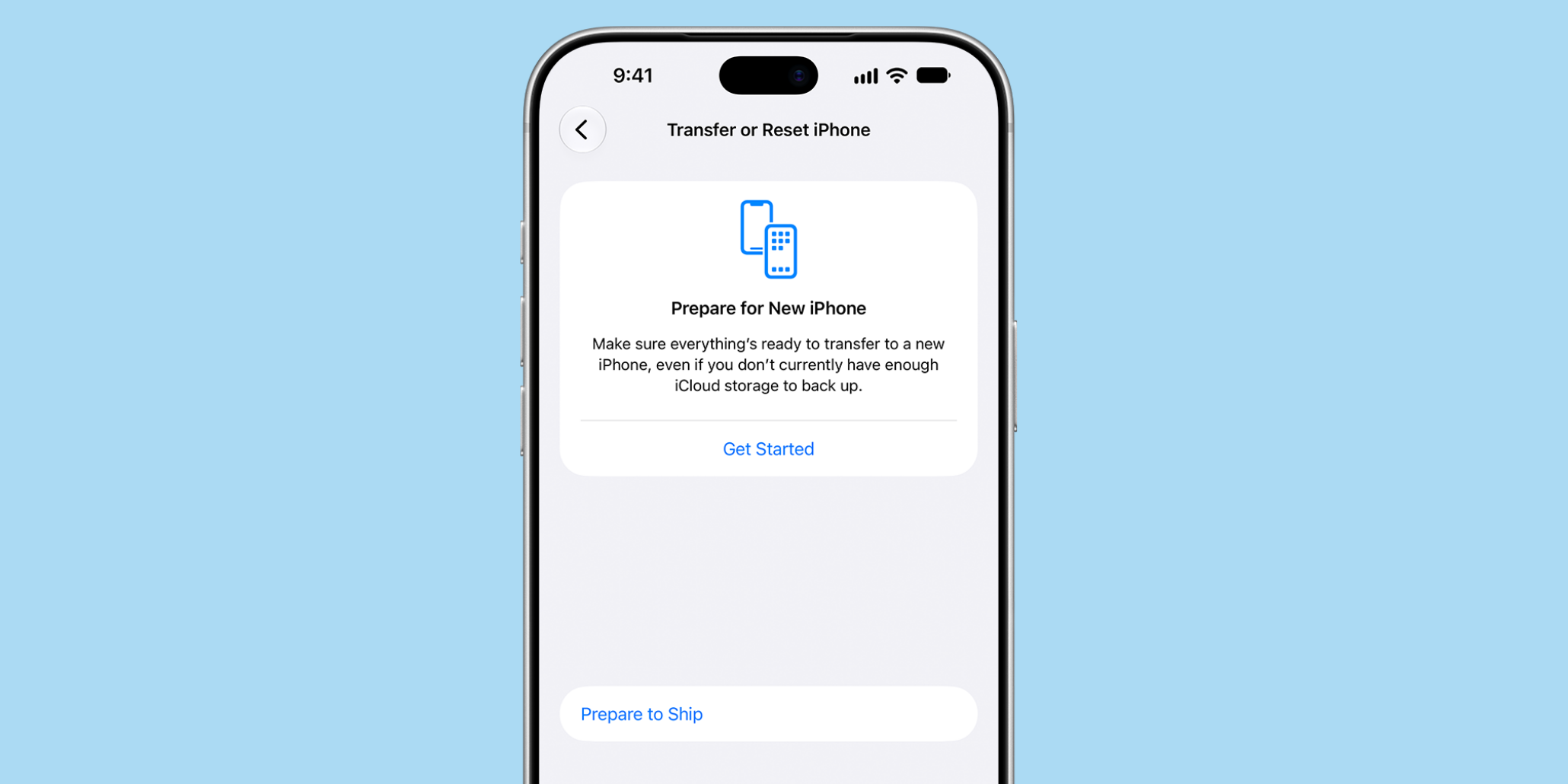
To prepare your device for shipping, follow these simple steps:
Tap Settings > General > Transfer or Reset iPhone > Prepare to Ship. Then simply follow the instructions relevant to your journey, ensuring you select the option to erase your phone if necessary.
Here’s some things to be aware of:
- The device may become warmer during the process.
- You should unplug the phone from its charger.
- The process can take anywhere from a few minutes to a few hours, depending on how much the battery level needs to reduce by.
- You can use your device while the process takes place.
- The Settings app will display a red signal reading ‘Ready to Ship’ once complete. However, if you’re erasing the device, you will be able to see the status on the ‘Hello’ screen under the info button.
Once the ‘Prepare to Ship’ mode has been enabled, the battery will be limited to 80% for 14 days.
What happens if I need to undo ‘Prepare to Ship’ mode?
Need to remove ‘Prepare to Ship’ mode early? No problem:
Head to Settings > General > Transfer or Reset iPhone > Ready to Ship, and tap ‘Undo Shipping Preparation’.
Selling your iPhone responsibly with Mazuma Mobile
Now that you know how to safely ship your iPhone 18 Pro Max to Mazuma Mobile, you can rest assured your device will be in safe hands when you send it to us! It’s never been easier to trade your iPhone in.
Whether your phone’s ready to find a new owner or its materials are recycled, trading it in with Mazuma helps give it a useful next chapter.
Got a question about trading in your old device, don’t hesitate to get in touch. A member of our team is always happy to help.