

How to Use iCloud Across Multiple Devices
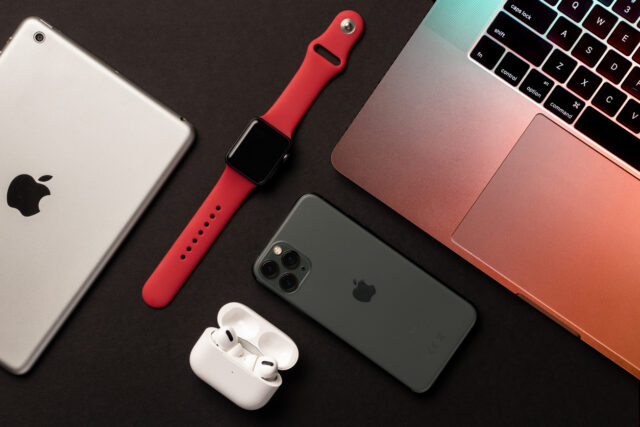
One of the joys of modern technology is being able to access your entire digital life from anywhere. From photos to messages to music – storing your data in the cloud makes life very easy. For example, those holiday photos from Spain or that funny picture of a grandchild can easily be sent to the rest of the family with the click of a button.
One of the most ubiquitous online storage options is Apple’s iCloud. Allowing swift synchronisation and access to data across the entire Apple ecosystem, iCloud will be part of any iPhone or iPad user’s daily life. It can be used across multiple devices to ensure you have all your personal data wherever you need it, meaning even if you were to sell your iPhone, you could still access your iCloud account, as we explain in the blog below.
What Is iCloud?
iCloud is Apple’s ‘Cloud Storage’ service. Everything on your Apple device can be uploaded to iCloud and be available on any other Apple product – and even on your Windows computer.
This is especially useful for continuity. You can take a photo on your iPhone and edit it on your MacBook without any complicated process to move it between them; it’s just there. Likewise, if you jot down a note on your watch, you will have it accessible on your iPad.
It’s similar to the way you can start watching the latest series of Ted Lasso on your TV in the evening and carry on with your iPhone on the train. Everything is stored in the cloud, accessible when you want it.
In this article, we’ll explain how to get the best out of iCloud, from initial setup to what happens when you need to trade in your phone.
You will need your device and your Apple ID (and password).
Can I Use iCloud On Multiple Devices?
You can use iCloud across multiple devices, and it’s recommended to ensure a seamless experience so you can sync and access all your important files and data on any device you need. All you need to do is sign in on the device you’re using, as we explain below.
How to Set Up iCloud on Multiple Devices
Setting up iCloud is simple, especially if you only have one device. If you have multiple, start with the one you’ll use most.
iPhone or iPad
- Go to Settings.
- Tap your name at the top.
- Select iCloud.
You’ll need to sign in with your Apple ID, then toggle on the apps and services you want to sync, such as Photos, Contacts, and Notes. This will ensure all your data is kept in sync across your devices.
Mac
- Head to System Settings (or System Preferences for older macOS versions).
- Click your Apple ID.
- Go to iCloud.
On an iPhone, you can enable or disable specific services.
Windows PC
If you’re on Windows, you’ll need to download iCloud for Windows from Apple’s website.
Once installed, log in with your Apple ID and choose which data you’d like to sync.
Apple Watch
You don’t need to do anything. Your Apple Watch shares the iCloud settings of its paired iPhone, so it happily picks them up from there. As long as your iPhone is correctly configured, your watch will follow suit.
The Web
You can also use a web browser to visit iCloud.com. Here you can manage all the iCloud services, including Photos, Mail, and iCloud Drive.
How Does iCloud Work with Multiple Devices?
Now that iCloud has been configured on all your devices, you’re good! Syncing will happen in the background without you needing to do anything.
What does that mean? Let’s take a look at how it works for each service.
- For photos, every picture or video you take on any device will be available to view on any other device.
- Any documents stored in iCloud Drive will be synced across all your devices. Any changes made to documents stored in iCloud Drive will be saved and changed in real time.
- Your contacts, calendar appointments, and notes will also automatically sync – so adding a new event for next Wednesday on your iPhone will appear on your iPad’s calendar.
iCloud Privacy
Of course, you might not want all of your media freely available on all your devices (especially if others have access to them). Apple has thought of that, offering the ability to maintain your privacy by hiding specific photos and videos.
- In Photos on iCloud.com, select the photos or videos you want to hide, or double-click a single photo or video.
- Click the More button, then click Hide.
All photos hidden in this way will be moved to a folder named ‘hidden’ and will not appear on the camera roll.
iCloud also offers the option to use ‘Keychain’ (Apple’s password manager) to keep all your data secure and to create and store safe passwords for logins. This means you will only need to remember one password, instead of the one for your email, Amazon, Apple Store, etc. It can also safely store your credit card details for ease of use.
Managing iCloud Storage
When you create a new Apple ID, you get 5GB of free storage. This is enough to get you started, but as you take more photos, upload documents and use the space, it can fill up quickly.
At this point, you have two options:
- Delete some of the stored items.
- Upgrade your account.
Apple offers storage upgrade packages (iCloud+) in 50GB, 200GB or 2TB, depending on your requirements. Currently, these start at £0.99 for the 50GB.
To view your storage usage and review your options:
On iPhone/iPad
- Head to Settings.
- Tap your name.
- Select iCloud.
- Click Manage Storage.
On Mac
- Go to System Settings (or System Preferences).
- Click Apple ID.
- Select iCloud and click ‘Manage’.
On Windows
- Open iCloud for Windows.
- Click on Storage to view and manage your space.
On the Web
If you’re using a browser, you can sign in to iCloud.com and manage storage directly from there.
Using iCloud for Backups and Restorations
While storage is very useful, one of the most valuable uses is backing up your device daily (or nightly).
When you plug your device in to charge every evening, as long as it’s connected to Wi-Fi (though you can change this in settings), it will back up all essential data on the device. This includes app settings, data, and messages.
To turn it on or check whether it is on:
- Go to settings.
- Tap your name.
- Click on iCloud.
- Click on iCloud Backup and toggle it on.
There will come a point – hopefully, just because you’ve got a new device (you can use our phone recycle service for your old iPhone!) – when you’ll need to restore this backup.
You’ll be prompted to enter your Apple ID, and then it’s as easy as choosing ‘Restore from iCloud Backup’ during setup.
Sharing Files and Collaborating with iCloud
iCloud isn’t just about backups and storage – thanks to the cloud availability, you can share and collaborate on files effortlessly.
Say you’re working on a newsletter or work document and would like a trusted pair of eyes to check it; all you have to do is simply head to the document you want and hit ‘share’.
You’re also able to choose if the people you add can edit or just read the file you’ve granted access to. If you don’t have your device to hand, you can also go to iCloud.com and share files directly from there.
How to Migrate iCloud to a New Device
When you get a new device, it’s easy to migrate your iCloud data across. Simply log in to the new iPhone or iPad with your existing Apple ID and select ‘restore from backup’. You’ll then be able to select which backup the device will start from.
What Happens When I Want to Sell My Phone?
Sometimes your device just reaches the end of its life. Your data can all remain safe by following these steps:
- Log in to your device.
- Head to the iCloud account.
- Click ‘iCloud backup’ and then ‘Back Up Now’.
This will ensure that the most up-to-date settings and data can be downloaded during the new device setup.
Sell Your Old Phone Quickly with Mazuma Mobile
At Mazuma, we want to do everything we can to help you use your phone, keep your data safe, and recycle your new phone when it’s time to change.
If you’re planning to sell your old device, you must remove your iCloud account from it before sending it. You can find out how by visiting our activation lock removal guide.
When you feel it’s time to upgrade, you can sell your phone quickly and easily with Mazuma Mobile! Whether you are looking to sell your phone, sell your iPad or sell your MacBook, get in touch and see how we can help get you the best price on your old device. We’ll rehome or recycle your device and will even pay you on the same day that we receive it!*
(This applies Monday to Friday, excluding bank holidays, and does not apply to orders that arrive with us after 2pm).